
Policy number: ALICOMM12000353


Communications:


Claim on Website
Step 1: Visit website: https://www.bandhanlife.com/

Step 2: In the top right-hand corner click on “My Policy”

Step 3: Enter your Aadhar linked mobile number & click on submit

Step 4: Enter OTP sent on your registered mobile number

Now you have successfully logged in to iAssist

User Manual for Switch functionality in I Assist for
Login to I Assist with below link
https://iassist.bandhanlife.com/login

Enter registered Mobile number

Enter OTP received on registered mobile number

Landing page after validating OTP.

To register Switch request ( Switch from Cash Bonus Payout to Accumulation and vice versa ) click on Payouts Widget on landing page.

After click on Payouts widget, click on “Update Payout” tab on screen

To register switch request click on “Switch Type” tab on screen
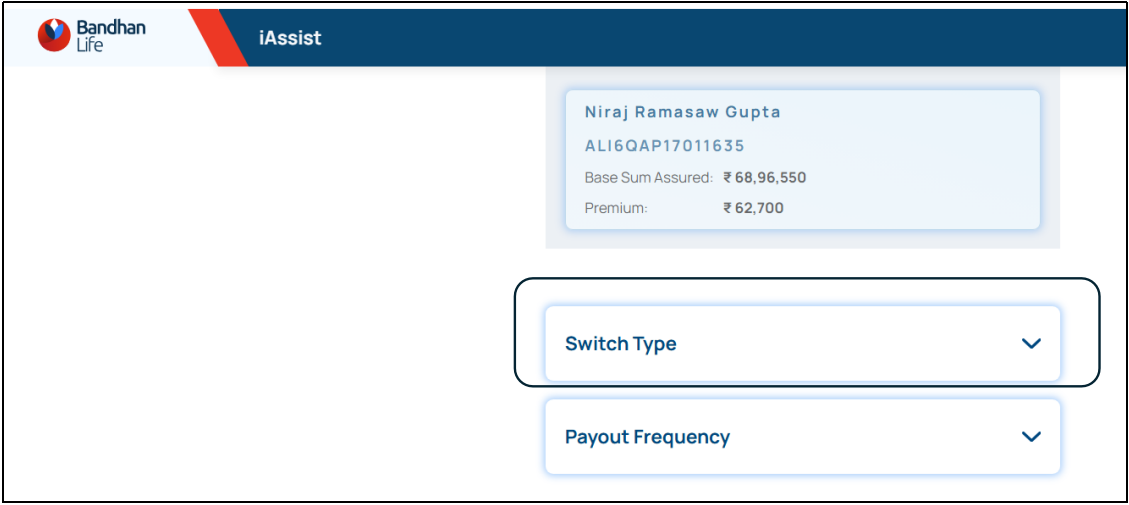
View current Payout Type which is highlighted on screen.

Select new Payout Type and click on “PROCEED” tab on screen.

Provide confirmation to process request

Switch request registered successfully

Service request details can be seen on landing page of I Assist below policy card under “My Service Requests”

Service request created and updated in ops console

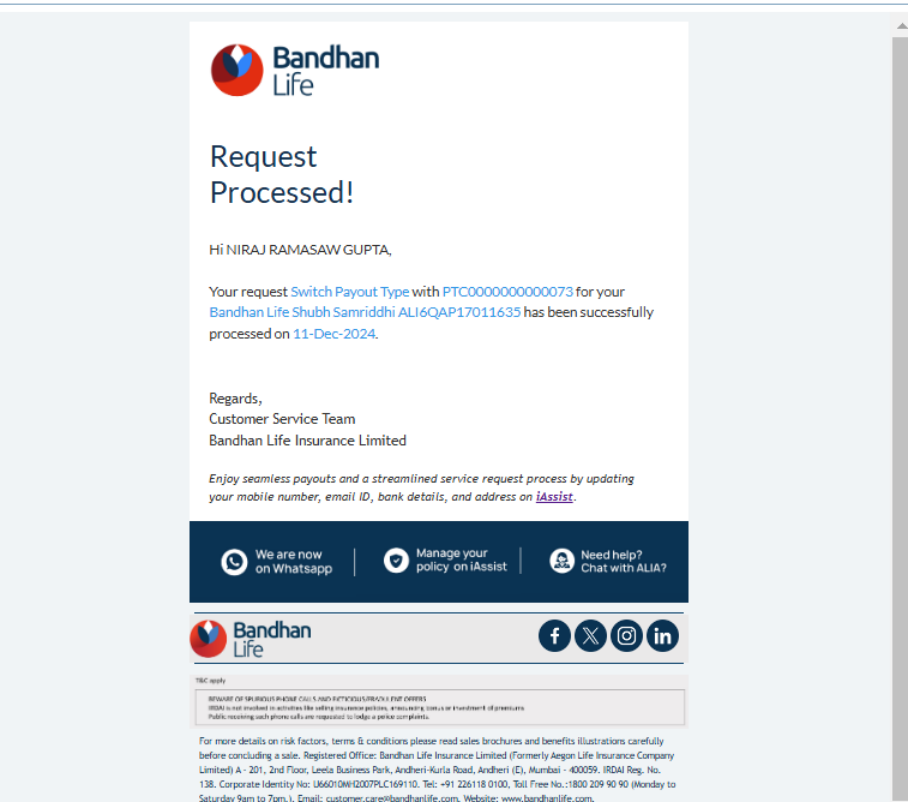
Confirmation Communication via Email and SMS to customer on registered contact details
SMS
Survival Payout can be viewed on iAssist
Screenshots of the journey
Check whether Pay-out centre widget available

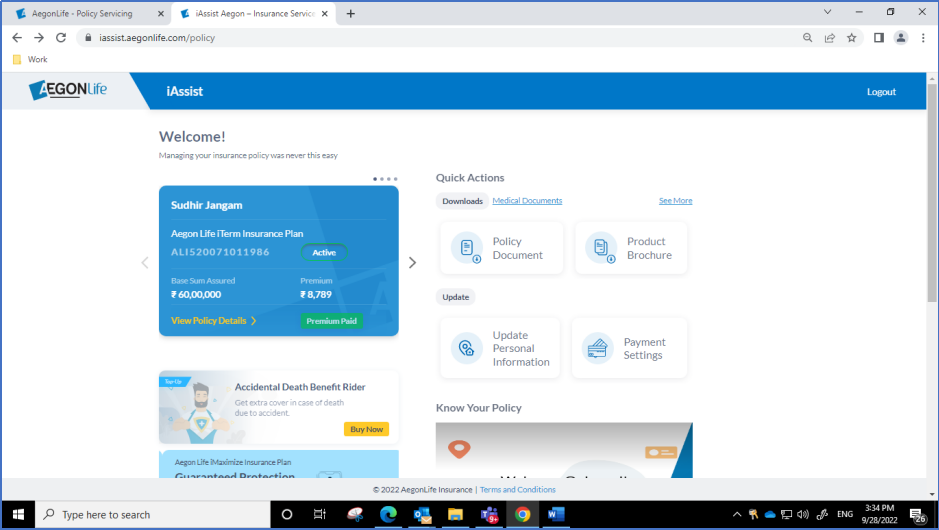
Product name, Policy number, Sum assured, Premium and policy status on card.

Check Payout details are reflecting on UI.

After click on view more case
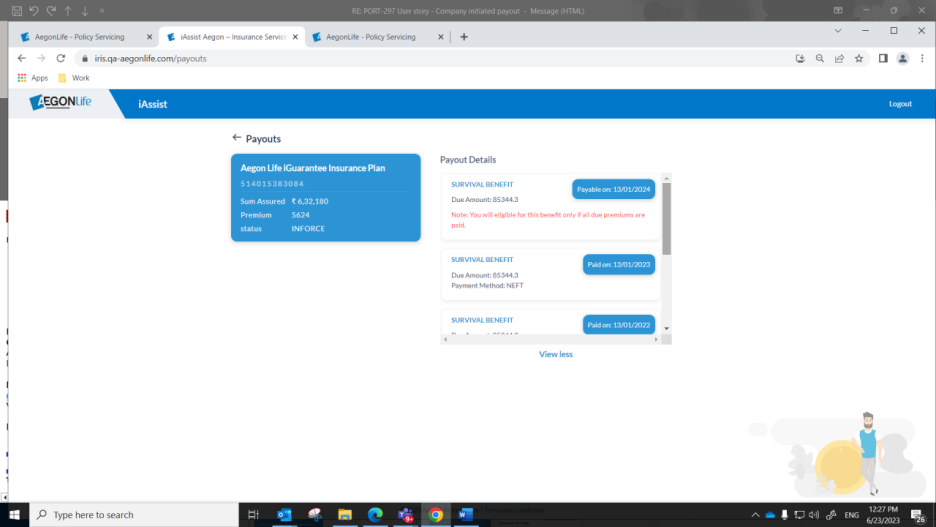
Payout not eligible policy

Step 1: Visit website: https://www.bandhanlife.com/

Step 2: In the top right-hand corner click on “My Policy”

Step 3: Enter your Aadhar linked mobile number & click on submit

Step 4: Enter OTP sent on your registered mobile number

Now you have successfully logged in to iAssist

Step 5: In the right click on See More
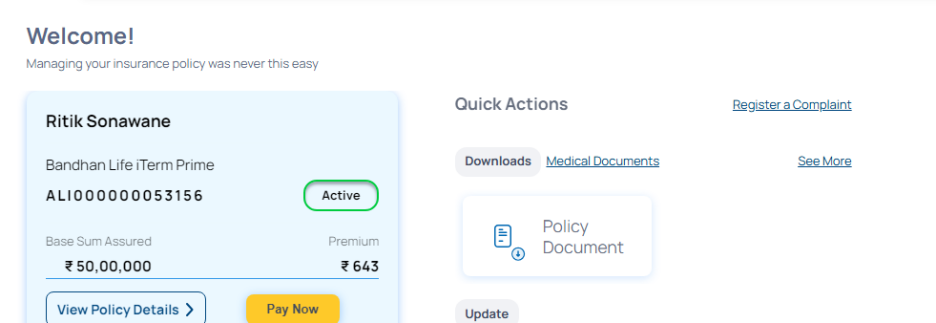
Step 6: Click on download

Step 1: Visit website: https://www.bandhanlife.com/

Step 2: In the top right-hand corner click on “My Policy”
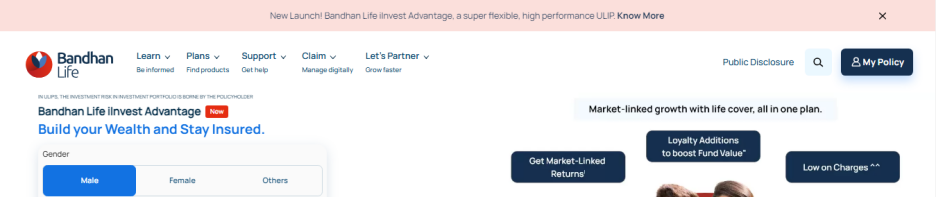
Step 3: Enter your Aadhar linked mobile number & click on submit

Step 4: Enter OTP sent on your registered mobile number

Now you have successfully logged in to iAssist

Step 5: In the right click on See More

Step 6: Customer can download the reports

Step 7: Customer can also click on medical documents on home page

Step 1: Visit website: https://www.bandhanlife.com/

Step 2: In the top right-hand corner click on “My Policy”

Step 3: Enter your Aadhar linked mobile number & click on submit

Step 4: Enter OTP sent on your registered mobile number

Now you have successfully logged in to iAssist

Step 5: In the right click on Policy Document

Step 6: Click on download document. Cm can see the format of password of policy document in the pop up.

Step 1: Visit website: https://www.bandhanlife.com/

Step 2: In the top right-hand corner click on “My Policy”

Step 3: Enter your Aadhar linked mobile number & click on submit

Step 4: Enter OTP sent on your registered mobile number

Now you have successfully logged in to iAssist

Step 5: In the right click on See More

Step 6: Customer can select the financial year he is looking to download premium receipt for.

Step 7: Click on download

Step 1: Visit website: https://www.bandhanlife.com/

Step 2: In the top right-hand corner click on “My Policy”

Step 3: Enter your Aadhar linked mobile number & click on submit

Step 4: Enter OTP sent on your registered mobile number

Now you have successfully logged in to iAssist

Step 5: In the right click on See More

Step 6: Customer can select financial year for which he is looking PTC

Step 7: Customer can download the PTC by clicking on downward arrow

Step 1: Visit website: https://www.bandhanlife.com/

Step 2: In the top right-hand corner click on “My Policy”

Step 3: Enter your Aadhar linked mobile number & click on submit
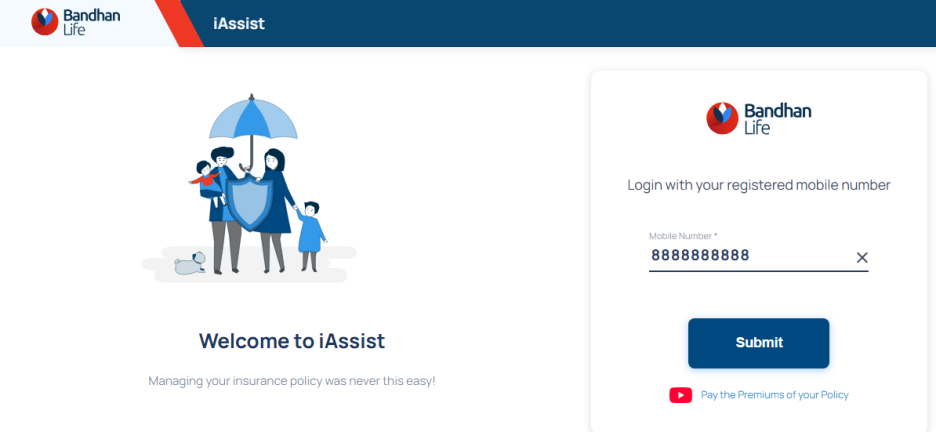
Step 4: Enter OTP sent on your registered mobile number

Now you have successfully logged in to iAssist

Step 5: Click on pay now

Step 6: Customer can see available payment options

Step 7: Customer will have to tick on terms and conditions & click on proceed to payment and pay premium via his preferred mode of payment

Step 1: Visit website: https://www.bandhanlife.com/

Step 2: In the top right-hand corner click on “My Policy”

Step 3: Enter your Aadhar linked mobile number & click on submit
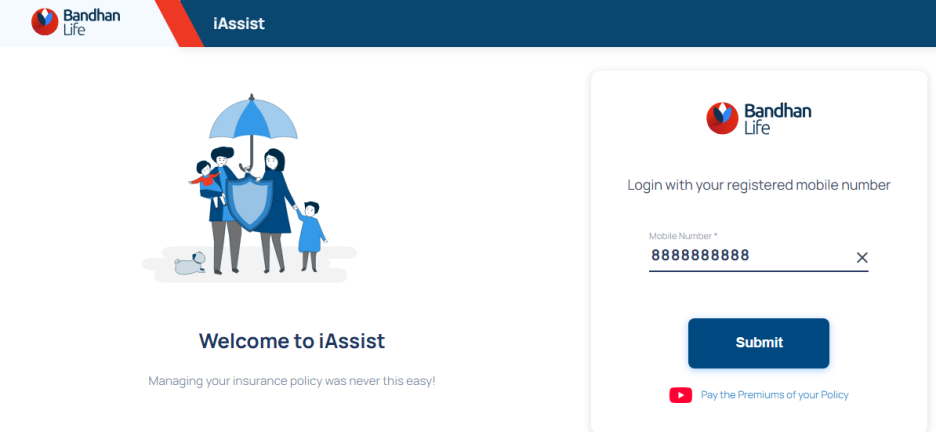
Step 4: Enter OTP sent on your registered mobile number

Now you have successfully logged in to iAssist

Step 5: In the right click on Update Personal Information. Customer can update below mentioned personal details from iAssist. Customer will have to enter his new details, and it will get updated on real-time basis.

Step 1: Visit website: https://www.bandhanlife.com/

Step 2: In the top right-hand corner click on “My Policy”

Step 3: Enter your Aadhar linked mobile number & click on submit

Step 4: Enter OTP sent on your registered mobile number

Now you have successfully logged in to iAssist
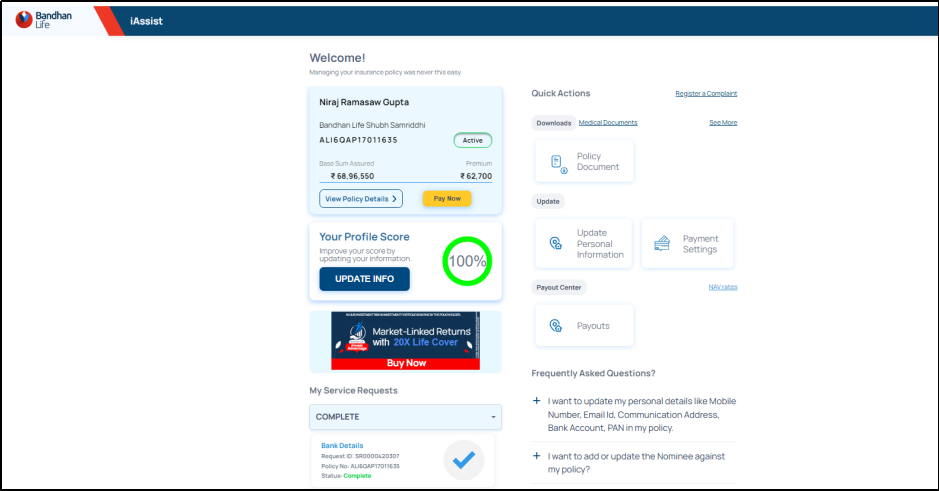
Step 5: Click on view policy details

Step 6: Click on edit

Step 7: Click on add nominee. Customer can add multiple nominees in policy but the total allocation should be 100 %

Frequency change in I Assist ( only for e Bao retail policies )
Login to I Assist with registered mobile number and validate with OTP
After login on landing page, click on payment setting widget
Click on “Premium Payment Frequency” tab

System will show current frequency and Frequencies available for changes.

Select required new frequency and click on Proceed button

New frequency change request will be registered in system

Change in frequency from old to new frequency will be shown in I Assist

SR will be created in Ops console and new frequency will be updated on effective date.

Login Page to iAssist :

Enter registered mobile number to login.

Enter OTP to validate login.

Landing page of iAssist.
1.Click on Fund Overview.

Landing page after Click on Fund Overview.

2.To check NAV rates click on NAV rates.

Select fund from dropdown and enter start date/end date to get results.
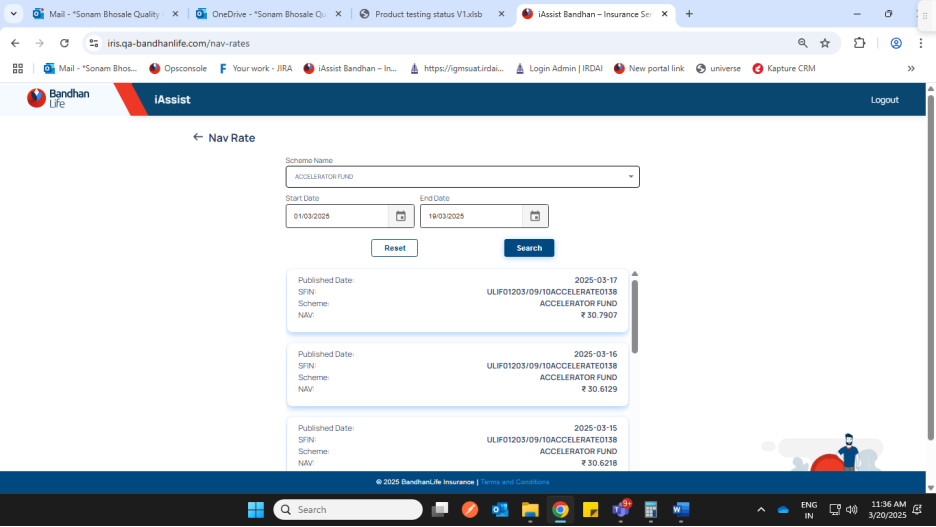
3.Check Fund value and other details of the policy.

4.Policy fund details and its values.

5.Operations
To Register request such as Top up, fund switch, Portfolio Type switch, Premium Redirection and transaction details of the policy, click on Operations button.
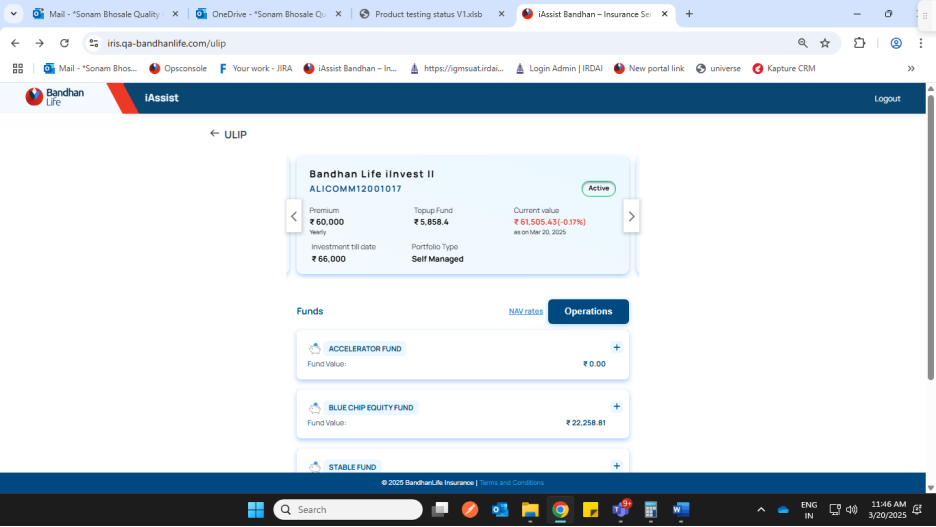

5.A.Transaction details :

5.B. Premium Redirection with validation of total should be 100% :


5.C. Fund switch :

Select new Fund from dropdown and update percentage to be transferred.


5.D. Top up with validation of minimum top up amount.

Enter top up amount more than 5000 and click on proceed to proceed for payment.

After successful payment Top up request would be submitted.

5.E. Portfolio Type switch : Current portfolio is highlighted, select other to switch.

User Manual for Switch functionality in I Assist for
Login to I Assist with below link
https://iassist.bandhanlife.com/login
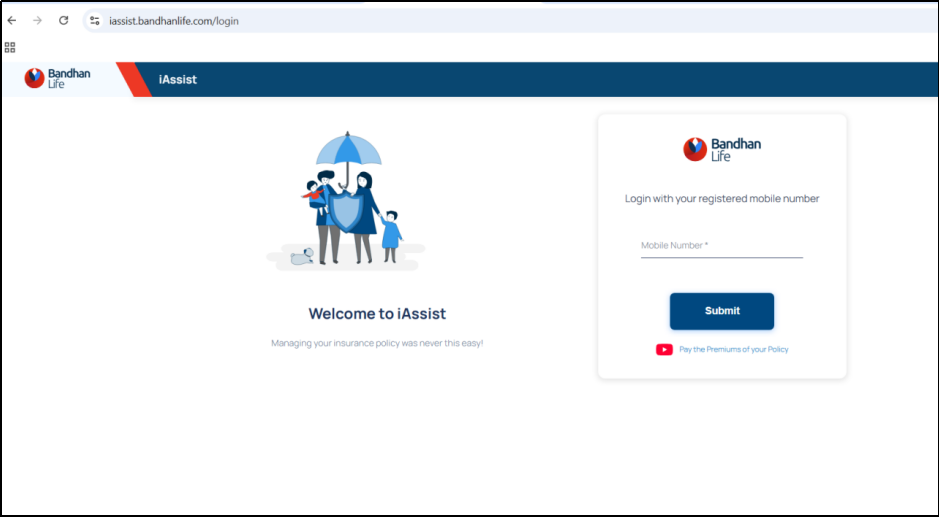
Enter registered Mobile number

Enter OTP received on registered mobile number

Landing page after validating OTP.

To register Switch request ( Switch from Cash Bonus Payout to Accumulation and vice versa ) click on Payouts Widget on landing page.

After click on Payouts widget, click on “Update Payout” tab on screen

To register switch request click on “Switch Type” tab on screen

View current Payout Type which is highlighted on screen.

Select new Payout Type and click on “PROCEED” tab on screen.

Provide confirmation to process request

Switch request registered successfully

Service request details can be seen on landing page of I Assist below policy card under “My Service Requests”

Service request created and updated in ops console

Confirmation Communication via Email and SMS to customer on registered contact details
SMS


Payout frequency change process

Click on update

Select Payout Frequency

Select new payout frequency on UI by click on Get quote
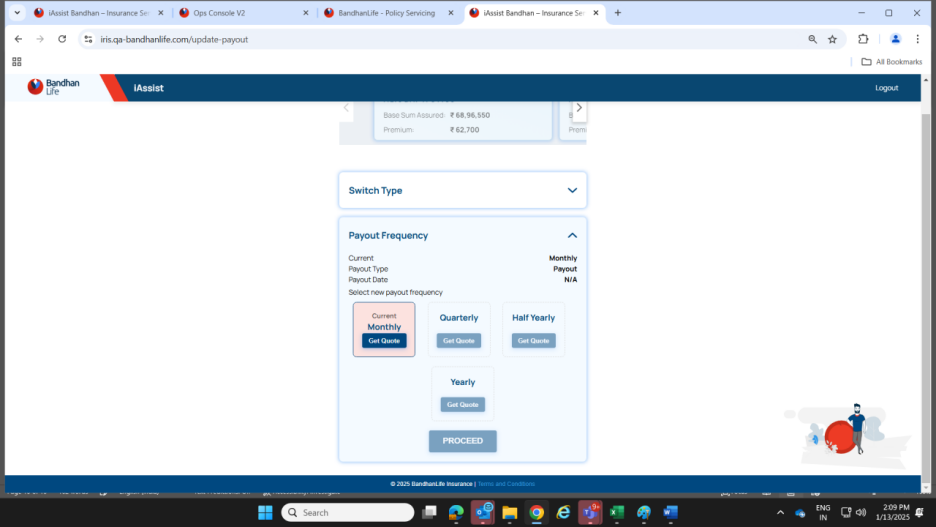
Click on Proceed button to confirm your request


Request will be processed on Policy anniversary

Mandate registration process in I Assist when mandate already registered on policy
Sample policy No. ALI000000068457
Mandate status in ops console


Mandate registration process on I Assist > Click on payment setting widget

If customer mandate active then Auto Debit status will be active. Customer need to select mandate type and click on proceed.


Click in tick box to proceed further for registration


Select appropriate options on Razorpay page for registration


New mandate request registered


Mandate infor tab in ops console also updated

Service request updated as completed and new mandate registered on policy


Communications triggered to customer for new mandate registered on policy

autodebit_registered_email

autodebit_registered_sms

autodebit_registered

I Assist status after new mandate registered
